
PromptPay
PromptPay is Thailand’s national real‑time payment scheme, enabling 70 Million users to make one off instant bank transfers by scanning a QR code. Ezypay now supports PromptPay as a payment method that Gym operators can offer to their members.
One of the biggest advantages of PromptPay is its universal compatibility. Customers do not need to download any additional app or install new software. Any Thai banking app or e‑wallet that supports PromptPay can scan the QR code and complete the payment instantly. This includes all major Thai banks, making the experience seamless for virtually every customer in Thailand.
Using the QR string returned by Ezypay, partners can render the dynamic PromptPay QR code on customer-facing displays for walk-in payments or embed it into online checkout flows. In both cases, members can scan the QR code using their preferred banking app to complete the payment.
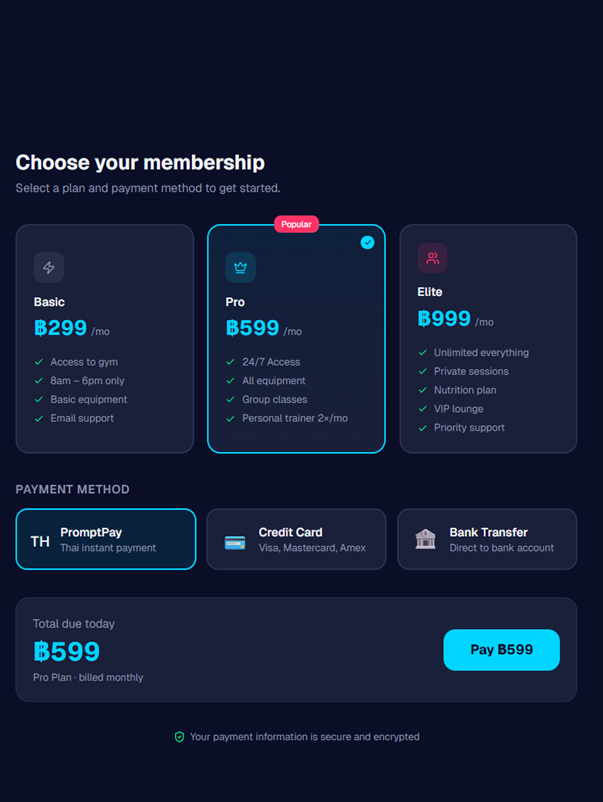
Customer choose to use PromptPay
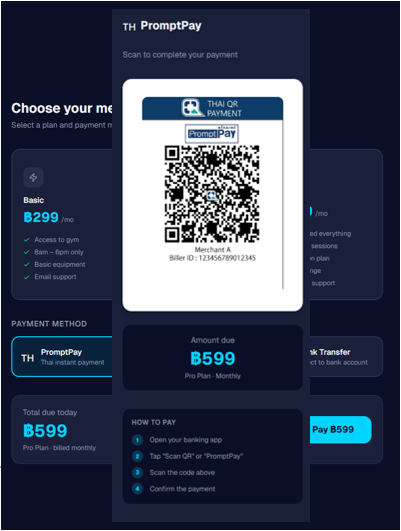
A QR code specific to the payment amount is presented
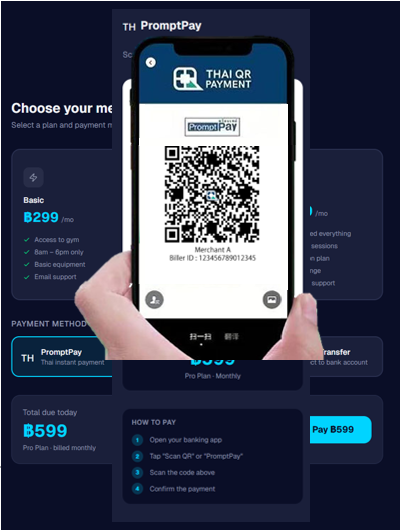
Customer scans and authorise the payment
What You Need to Know
- Customer-initiated – No payment attempt occurs until the customer scans the QR code and authorises the payment in their banking app. Thus, it cannot be used on Ezypay's subscriptions.
- Single-use QR Code - Each QR code is valid for one payment only. The QR is automatically invalidated once payment is completed.
- Pre-set amount - The QR code presented is fixed to the invoice amount automatically without the need for customer to key in the amount for a generic QR.
- Time-bounded – QR codes have an expiry period. By default, PromptPay QR payments expire after 7 days if the customer takes no action and the invoice will fail.
- QR Code Generation Required - Ezypay provides a QR string, not a QR image. Your system is responsible for converting the returned string into a scannable QR code.
- No Refunds and Chargeback - Refunds are not supported for PromptPay transactions because the customer approves and authorises the transfer in advance.
- Customer Statement Descriptor - The bank statement descriptor will show either the merchant name or “Xendit Tech Co Ltd”. This behaviour is controlled by the bank and we cannot guarantee which will come out in the bank statement.
- Asynchronous Processing – The partner platform must wait for customer action, and the payment may be cancelled or expire before that occurs without any movement of funds. The final payment outcome is identifiable via Ezypay webhook events.
- No Customer Notification - No customer notification is available for PromptPay, including failed payment notification.
- Cannot be Primary - PromptPay cannot be set as the primary payment method of a customer.
Get Started
Before processing an invoice with PromptPay, you must first create a PromptPay payment method token using the Ezypay API. Once the token is created, attach it during invoice creation. After the invoice is submitted, rely on webhook events to retrieve the QR string for customer payment and to receive the final payment outcome.
1. Adding a PromptPay Payment Method Token
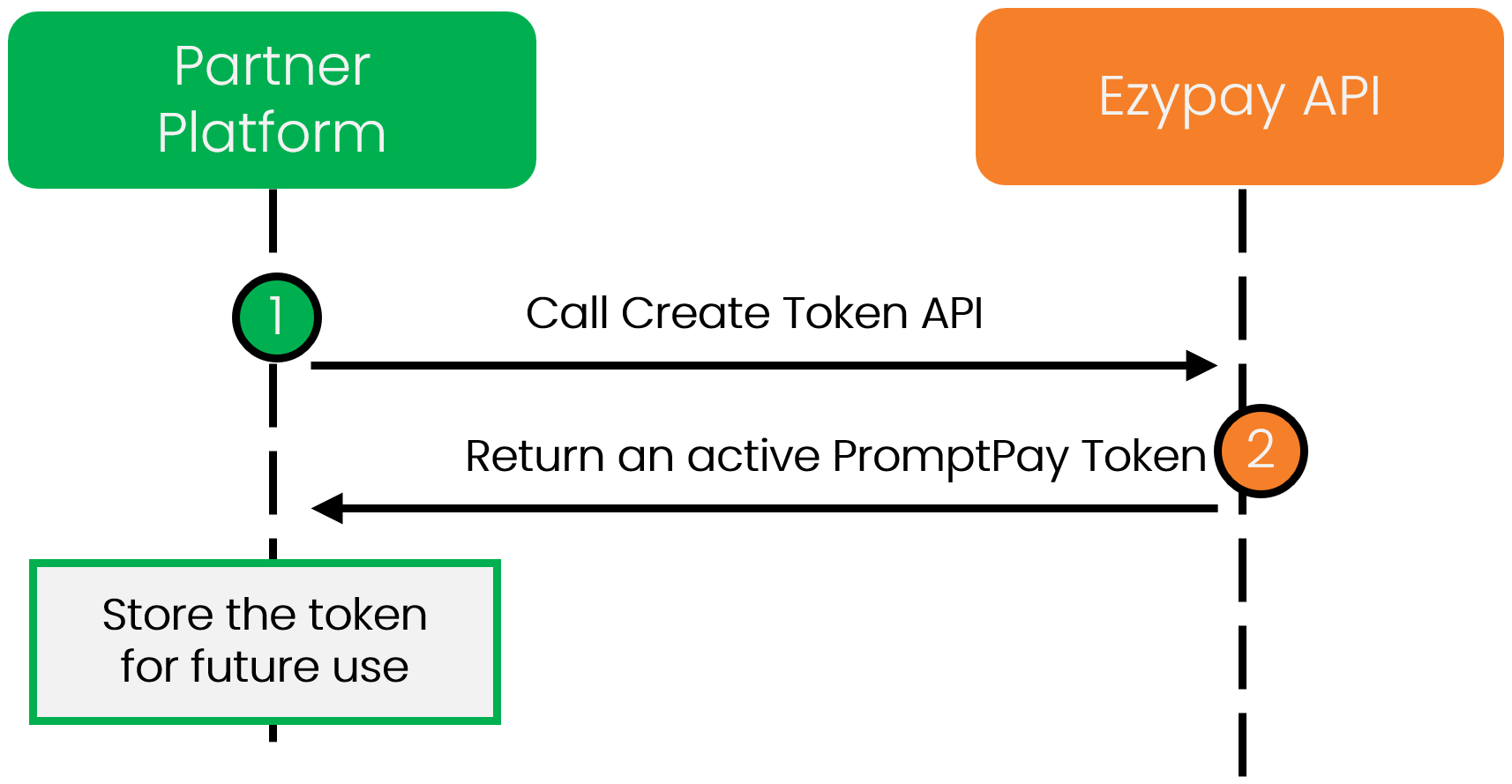
- Create PromptPay Payment Method Token for the customer using API. This only needs to be done once per customer. The token is automatically linked with the specified
customerIdand can be reused for all future invoices for that customer. - Store the
paymentMethodTokenreturned securely and reuse this token when creating PromptPay invoices for the same customer.
{
   "accountHolderName": "John Doe",
   "countryCode": "TH",
   "qrType": "PROMPTPAY",
   "termAndConditionAgreed": true,
   "customerId": "f97d05cd-bd98-418d-8f78-a59d04ca47ee"
}
{
"type": "QRPAYMENT",
"qrPayment": {
"merchantId": "5b390bbe-6c65-4d06-96d4-0d37b39eed24",
"accountHolderName": "John Doe",
"qrType": "PROMPTPAY",
"countryCode": "TH",
"customerId": "f97d05cd-bd98-418d-8f78-a59d04ca47ee"
},
"paymentMethodToken": "e8eaef9d-eac2-46ac-80c2-71a69e2ae6b8"
}2. Create a PromptPay Invoice
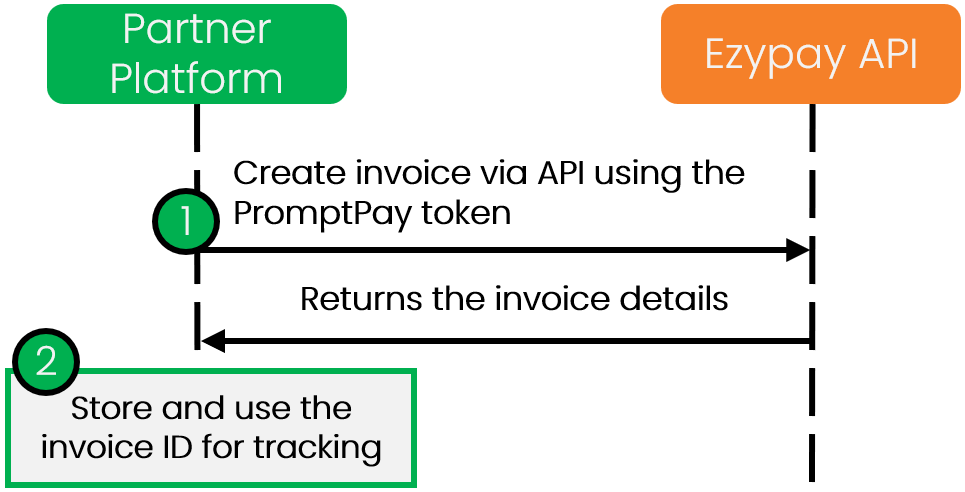
Use Create Invoice API to create invoice that will produce a PromptPay QR string.
- Create Invoice using the PromptPay Token
- Provide the
customerId,paymentMethodTokenand invoice item in theitemsarray. - The invoice response from Ezypay will include a
qrDataobject. - Initially,
qrData.qrStringwill appear asGENERATING. Wait for theqr_responsewebhook from Ezypay to receive the actual QR string.
- Provide the
Use
externalInvoiceIdas the idempotency key for each invoice.
{
    "customerId": "f97d05cd-bd98-418d-8f78-a59d04ca47ee",
    "paymentMethodToken": "6f2afde5-7c6d-4107-ab59-1f0eafe10734",
    "externalInvoiceId": "PARTNER-INV-0001",
    "items": [
        {
            "amount": {
                "currency": "THB",
                "value": 10000
            },
            "tax": {
                "rate": 7
            },
            "description": "GYM Membership 12 month Payment"
        }
    ]
}
{
"id": "2326be94-1726-4fff-b1b0-50677640f5ec",
"creditNoteId": null,
"documentNumber": "IN0000000000000216",
"date": "2025-10-24",
"dueDate": "2025-10-24",
"scheduledPaymentDate": null,
"externalInvoiceId": "PARTNER-INV-0001",
"status": "PROCESSING",
"memo": null,
"items": [
{
"description": "GYM Membership 12 month Payment",
"amount": {
"currency": "THB",
"value": 10000.00,
"type": null
},
"tax": {
"rate": 7.00
},
"id": "99259951-0169-43ca-b202-315bde56207e",
"type": "on_demand_payment",
"discounted": {
"currency": "THB",
"value": 0.00,
"type": null
},
"accountingCode": null,
"reference": null
}
],
"amount": {
"currency": "THB",
"value": 10000.00,
"type": null
},
"amountWithoutDiscount": {
"currency": "THB",
"value": 10000.00,
"type": null
},
"totalDiscounted": {
"currency": "THB",
"value": 0.00,
"type": null
},
"totalRefunded": {
"currency": "THB",
"value": 0.00,
"type": null
},
"totalTax": {
"currency": "THB",
"value": 9.09,
"type": null
},
"customerId": "f97d05cd-bd98-418d-8f78-a59d04ca47ee",
"subscriptionId": null,
"checkoutId": null,
"subscriptionName": null,
"paymentMethodToken": "6f2afde5-7c6d-4107-ab59-1f0eafe10734",
"paymentMethodData": {
"paymentMethodToken": "6f2afde5-7c6d-4107-ab59-1f0eafe10734",
"customerId": "f97d05cd-bd98-418d-8f78-a59d04ca47ee",
"type": "QRPAYMENT",
"bank": null,
"payTo": null,
"card": null,
"invalidReason": null,
"lastUsedOn": "2025-10-23T09:05:14.955",
"replacedPaymentMethodData": null,
"wallet": null,
"qrPayment": {
"qrType": "PROMPTPAY",
"accountHolderName": "John Doe",
"countryCode": "TH"
},
"valid": true,
"primary": false
},
"autoPayment": true,
"processingModel": null,
"transactionSource": null,
"createdOn": "2025-10-24T00:29:46.979",
"payNowUrl": null,
"channel": "api",
"checkoutResult": null,
"customerFirstName": null,
"customerLastName": null,
"qrData": {
"qrString": "GENERATING",
"expires": "2025-10-31T00:29:46.979"
},
"manualRetryPossible": true,
"paymentMethodInvalid": false
}- Next, retrieve and store the
idof the created invoice for tracking the webhook.
Do not generate a QR code yet—wait for the
qr_responsewebhook.
3. Handle qr_response Webhook
qr_response Webhook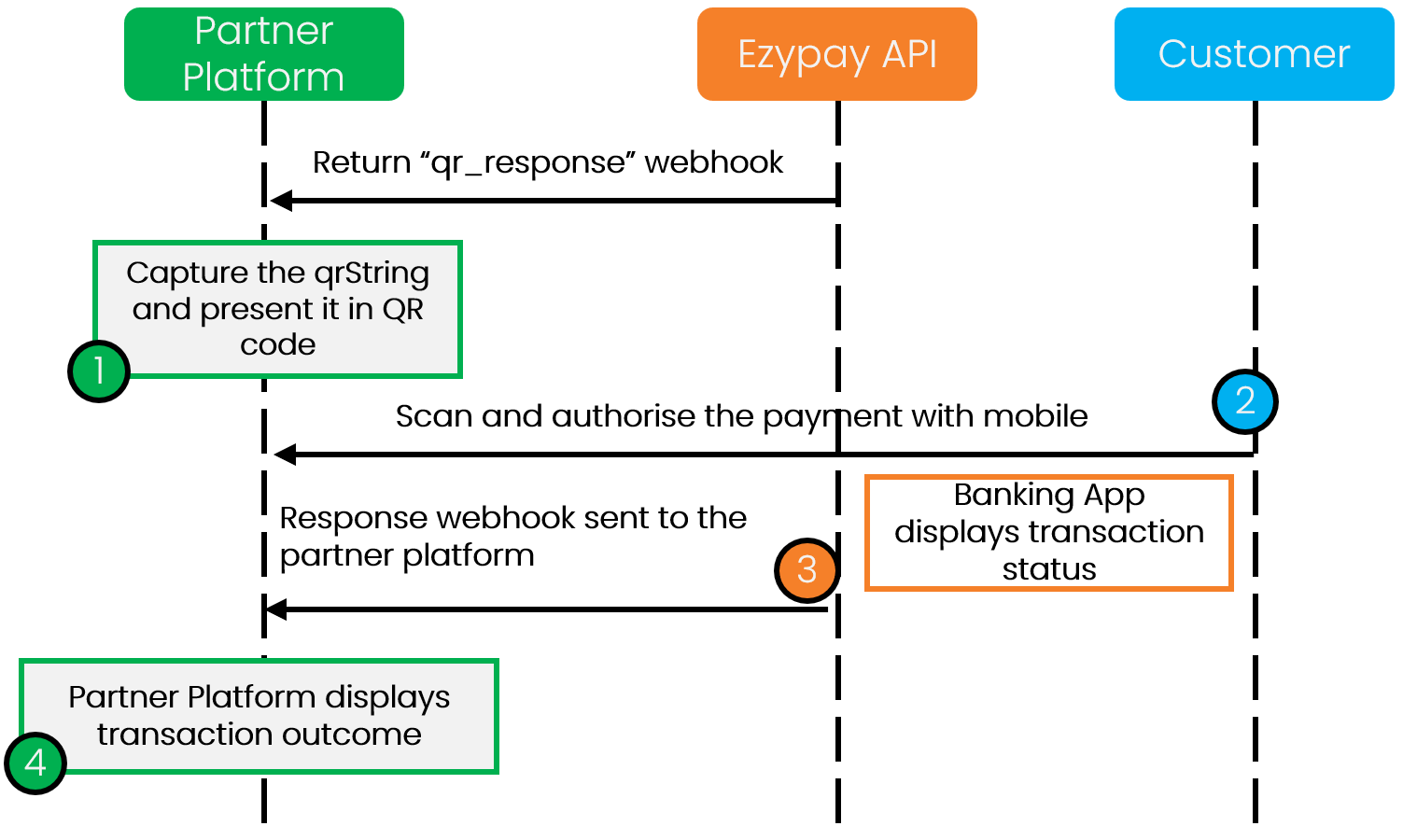
Once the QR string is available, Ezypay will send a qr_response webhook. Make sure you have subscribed to it.
The QR string will be available from Ezypay in near real-time.
- Retrieve the
data.qrData.qrStringand use it to generate a QR code image, which is presented to the customer.
{
  "requestId": "ae2e8868-2ff2-48db-b4f8-1bb5eae09c37",
  "merchantId": "ef9d4c48-5176-4fa5-9f64-f5fd5e81a55e",
  "eventType": "QR_RESPONSE",
  "createdOn": "2025-10-05T12:45:04.786",
  "data": {
    "invoiceId": "0d5fdd7c-a2aa-4e70-a1b9-bc5f1202e20f",
    "invoiceStatus": "PENDING_QR_PAYMENT",
    "type": "QRPAYMENT",
    "qrType": "PROMPTPAY",
    "qrData": {
      "qrString": 		"00020101021230830016A00000067701011201150105560068127480218800000250815112795031800064VR8QCUD6EB2RD530376454045.005802TH5910GBPrimePay6304B160",
      "expires": "2025-10-12T12:45:04.786"
    },
    "amount": 10000,
    "currency": "THB"
  }
}- At this point, the customer is expected to use their mobile phone to scan the QR code and authorise the payment within their banking app.
Show the expiry of the QR code.
- Set up a webhook to receive outcome for invoice generated.
invoice_paid- Payment success.invoice_past_duePayment failed. Only happens when a QR expired.
- Display the payment outcome and ensure you capture the fees charge by Ezypay to customer is also displayed. Use the
items.typefield to identify different fee type from Ezypay. Please refer to Ezypay's fees for more information about Ezypay's fees.
Cancelling a QR payment
A QR payment can be cancelled before the customer scans the QR code. For the full API's spec, refer to Cancel a QR Payment API
Common Scenarios
- Customer walks away from the counter
- Customer decides not to proceed with payment
- Merchant wants to void the transaction before payment
How to cancel the QR Payment
- Call the Cancel QR Payment API.
- Wait for the
qr_responsewebhook. - In the webhook:
- If success -
data.qrData.qrStringwill beCANCELEDanddata.cancelStatusisSUCCESS. - If failed-
data.qrData.qrStringwill remained anddata.cancelStatusisFAILED.
- If success -
- The invoice status will update to:
UNPAIDon successful cancellation.
{
  "requestId": "ae2e8868-2ff2-48db-b4f8-1bb5eae09c37",
  "merchantId": "ef9d4c48-5176-4fa5-9f64-f5fd5e81a55e",
  "eventType": "QR_RESPONSE",
  "createdOn": "2025-10-05T12:45:04.786",
  "data": {
    "invoiceId": "0d5fdd7c-a2aa-4e70-a1b9-bc5f1202e20f",
    "invoiceStatus": "UNPAID",
    "type": "QRPAYMENT",
    "qrType": "PROMPTPAY",
    "qrData": {
      "qrString": "CANCELED",
      "expires": ""
    },
    "amount": 100,
    "currency": "THB",
    "cancelStatus": "SUCCESS"
  }
}
Expired QR payment
If no customer action is taken within 7 days, the QR payment will automatically expire.
Expiry Behaviour
- QR code becomes invalid.
- Invoice status updates to:
PAST_DUE - An
invoice_past_duewebhook is triggered. - The failure reason will be:
EXPIRED
Updated 14 days ago